Difference between revisions of "Other Crop Assumptions"
Tag: Reverted |
|||
| (48 intermediate revisions by the same user not shown) | |||
| Line 1: | Line 1: | ||
This page enables | ===What is this page?=== | ||
This page enables you to calculate net revenue from growing crops other than cane on fallow blocks. | |||
Information for area for Other Crops Year 1 and Other Crops Year 2 (if applicable) will have to be already added to enable this page. | Information for area for Other Crops Year 1 and Other Crops Year 2 (if applicable) will have to be already added, on the [[Cane Assumptions]] page, to enable this page. | ||
===Add a crop=== | |||
'''To add a new planting, click on "Add Crop" in the respective Year.''' | |||
* This will bring up the Add/Edit Crop template. | |||
2. | [[File:Other Crop Assumptions 2.png|1300px|frameless|center|link=]] | ||
'''In order to submit the details, complete each section of the template.''' | |||
* A completed template is shown below. | |||
= | [[File:Add_Edit_Crop_SPot.png|1300px|frameless|center|link=]] | ||
====Filling out this section==== | |||
'''1. Enter the Crop Number / Sequence.''' This is useful for multiple crops. | |||
* If more that one crop is grown on the same section of land within the one year period (one after the other), use a higher Crop Number / Sequence for each subsequent crop (e.g. 1,2,3). | |||
* If more than one crop is grown on different sections of land at the same time, use the same Crop Number / Sequence (e.g. 1,1,1) but note that the sum of these areas must not exceed the total area. | |||
* If only one crop is grown, use any Crop Number / Sequence (e.g. 1) | |||
[[File: | '''2. Enter crop type''' (e.g. Legumes). | ||
'''3. Enter crop name''' (e.g. Soybeans). | |||
'''4. Enter the area planted with the other crop''' (e.g. 25 hectares). | |||
* '''Important Note:''' The area cannot be greater than the allocated area for Year 1 or Year 2. If the same Crop Number / Sequence has been entered multiple times then the combined area cannot be greater. | |||
'''5. Enter Yield (Harvest Weight) (t/ha or units/ha).''' This is the field weight prior to drying or grading. | |||
* Units/ha can be used for crops where the standard measurement is not in tons/ha (e.g. cartons/ha). | |||
* If units/ha is chosen, ensure this is used consistently throughout the scenario. | |||
* If the crop is used for green manure then "0" should be entered. Do not leave the field blank. | |||
'''6. Enter any costs that are associated with the crop prior to grading and drying in Harvest Weight Costs (Field Transport / Handling / Drying) ($/t or $/unit).''' | |||
* This includes transport to the driers or pack-house, drying costs, etc. | |||
'''7. Ender the Yield (Paid weight) (t/ha or units/ha).''' This is the final weight on which payment is made, and is never higher than Harvest weight. | |||
* If units/ha were used previously, maintain consistency. | |||
* If the crop is used for green manure then "0" should be entered. Do not leave the field blank. | |||
'''8. Enter Paid weight costs (Transport / Handling / Drying) ($/t or $/unit) either directly or with assistance from the "Calculate" button.''' | |||
* These are costs associated with the product that is paid for, including transport of the clean and dry product to market, inspection charges, etc. | |||
* If the calculator is used to determine transport costs to multiple destinations, ensure the quantities in the Proportion (%) column add up to 100%. | |||
'''9. Click on Use Value to return to Add/Edit page. | |||
''' | |||
[[File:Pd_weight_costs_calculator.png|1300px|frameless|center|link=]] | |||
'''10. Enter the Market Price ($/t or $/unit) either directly, or with assistance from the "Calculate" button.''' | |||
* Maintain consistency with the units chosen in previous fields (e.g. tons, cartons, pieces, bins, kgs). | |||
* The calculator can be used to help work out the average price when there are multiple grades paid at differing rates. | |||
* Ensure the % of crop totals 100%. Click on Use Value to return to Add/Edit page. | |||
[[File:Market_price_calculator.png|1300px|frameless|center|link=]] | |||
'''11. Enter the levies as a percentage of the market price, if applicable.''' For example, 2% of market price. | |||
* If there are no levies, enter 0. | |||
'''12. Once all Required fields are filled, click on "Submit" at the bottom of the pop-up.''' | |||
* If the sheet has been idle for a prolonged period before submitting, the submission may be unsuccessful, and needs to be repeated while logged in. | |||
'''13. To change any value, click on the blue "Edit" button to bring up the Add/Edit Crop template again.''' | |||
===Summary Table=== | |||
'''Down the bottom of the page is a summary table for all legumes, peanuts, and other crops.''' | |||
* This is a helpful table to check areas and yields for crops. | |||
[[File:Other_crop_Summary_Table.png|1300px|frameless|center|link=]] | |||
[[Cane Summary]] ⇐|⇒ [[Other Crops Growing Costs]] | [[Cane Summary]] ⇐|⇒ [[Other Crops Growing Costs]] | ||
Latest revision as of 22:52, 28 June 2023
What is this page?
This page enables you to calculate net revenue from growing crops other than cane on fallow blocks.
Information for area for Other Crops Year 1 and Other Crops Year 2 (if applicable) will have to be already added, on the Cane Assumptions page, to enable this page.
Add a crop
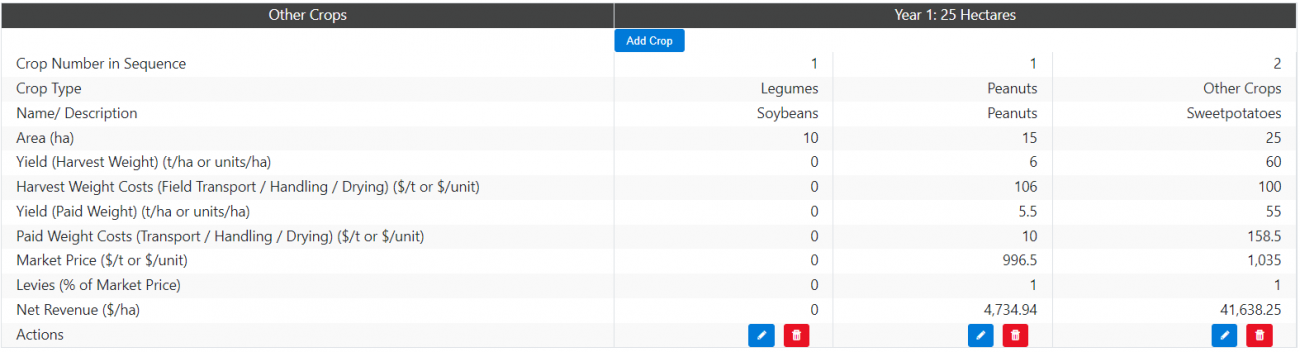
To add a new planting, click on "Add Crop" in the respective Year.
- This will bring up the Add/Edit Crop template.
In order to submit the details, complete each section of the template.
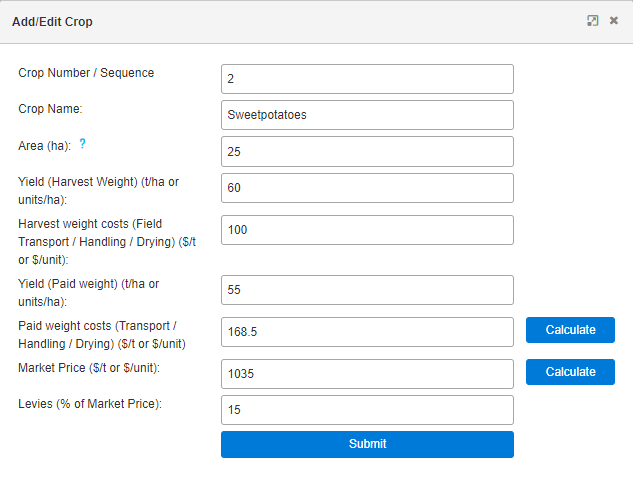
- A completed template is shown below.
Filling out this section
1. Enter the Crop Number / Sequence. This is useful for multiple crops.
- If more that one crop is grown on the same section of land within the one year period (one after the other), use a higher Crop Number / Sequence for each subsequent crop (e.g. 1,2,3).
- If more than one crop is grown on different sections of land at the same time, use the same Crop Number / Sequence (e.g. 1,1,1) but note that the sum of these areas must not exceed the total area.
- If only one crop is grown, use any Crop Number / Sequence (e.g. 1)
2. Enter crop type (e.g. Legumes).
3. Enter crop name (e.g. Soybeans).
4. Enter the area planted with the other crop (e.g. 25 hectares).
- Important Note: The area cannot be greater than the allocated area for Year 1 or Year 2. If the same Crop Number / Sequence has been entered multiple times then the combined area cannot be greater.
5. Enter Yield (Harvest Weight) (t/ha or units/ha). This is the field weight prior to drying or grading.
- Units/ha can be used for crops where the standard measurement is not in tons/ha (e.g. cartons/ha).
- If units/ha is chosen, ensure this is used consistently throughout the scenario.
- If the crop is used for green manure then "0" should be entered. Do not leave the field blank.
6. Enter any costs that are associated with the crop prior to grading and drying in Harvest Weight Costs (Field Transport / Handling / Drying) ($/t or $/unit).
- This includes transport to the driers or pack-house, drying costs, etc.
7. Ender the Yield (Paid weight) (t/ha or units/ha). This is the final weight on which payment is made, and is never higher than Harvest weight.
- If units/ha were used previously, maintain consistency.
- If the crop is used for green manure then "0" should be entered. Do not leave the field blank.
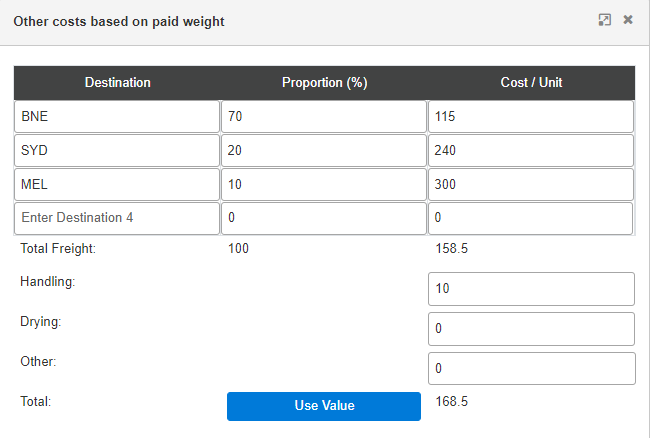
8. Enter Paid weight costs (Transport / Handling / Drying) ($/t or $/unit) either directly or with assistance from the "Calculate" button.
- These are costs associated with the product that is paid for, including transport of the clean and dry product to market, inspection charges, etc.
- If the calculator is used to determine transport costs to multiple destinations, ensure the quantities in the Proportion (%) column add up to 100%.
9. Click on Use Value to return to Add/Edit page.
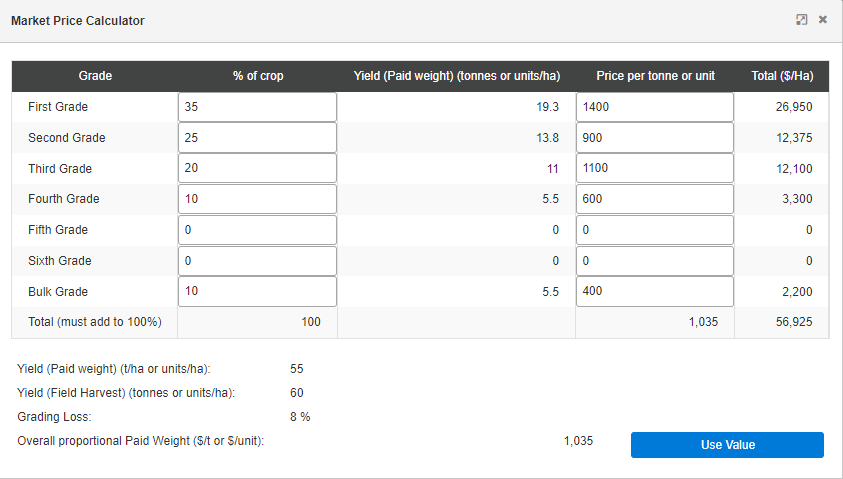
10. Enter the Market Price ($/t or $/unit) either directly, or with assistance from the "Calculate" button.
- Maintain consistency with the units chosen in previous fields (e.g. tons, cartons, pieces, bins, kgs).
- The calculator can be used to help work out the average price when there are multiple grades paid at differing rates.
- Ensure the % of crop totals 100%. Click on Use Value to return to Add/Edit page.
11. Enter the levies as a percentage of the market price, if applicable. For example, 2% of market price.
- If there are no levies, enter 0.
12. Once all Required fields are filled, click on "Submit" at the bottom of the pop-up.
- If the sheet has been idle for a prolonged period before submitting, the submission may be unsuccessful, and needs to be repeated while logged in.
13. To change any value, click on the blue "Edit" button to bring up the Add/Edit Crop template again.
Summary Table
Down the bottom of the page is a summary table for all legumes, peanuts, and other crops.
- This is a helpful table to check areas and yields for crops.
