Difference between revisions of "Cane Growing Costs"
| Line 116: | Line 116: | ||
'''5. Add fertiliser application costs by clicking "Add Machinery Operation" and entering the details for the implement used to apply fertiliser (e.g. stool splitter). | '''5. Add fertiliser application costs by clicking "Add Machinery Operation" and entering the details for the implement used to apply fertiliser''' (e.g. stool splitter). | ||
* If fertiliser is applied by the planter then do not enter an implement. | * If fertiliser is applied by the planter then do not enter an implement. | ||
Revision as of 22:54, 28 June 2023
This page is used to calculate cane growing costs per hectare, including the costs of machinery operations, fertiliser, pesticides and irrigation.
- Note: Please visit Machinery Setup for a step-by-step guide on how to add implement and tractor data.
Cultivation (bare fallow crop entries only)
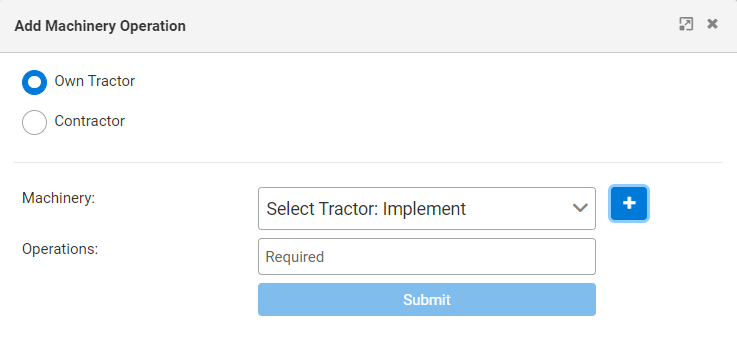
1. Add machinery costs for cultivation by clicking on the ‘Add Machinery Operation’ button.
2. If tractor and implement details have already been entered then you will be able to select the tractor and implement from the drop down box and then enter the number of operations (or passes) undertaken.
- If tractor and implement details have not been entered then you will need to click on the ‘+’ button located on the right, see Machinery Setup for more information.
3. Operations undertaken by a contractor are entered by selecting the ‘Contractor’ option, naming it appropriately, choosing number of operations and the contractor rate.

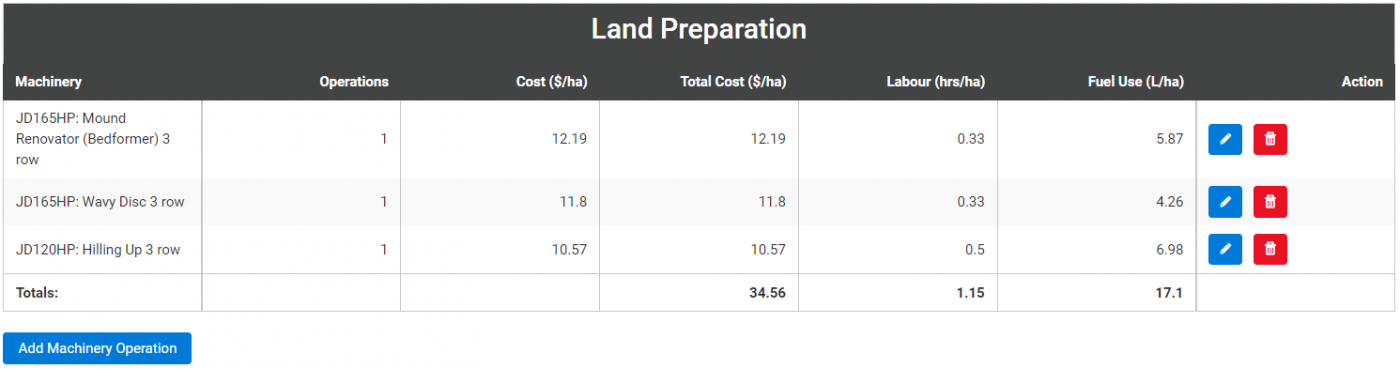
Land Preparation (plant, plough out replant and ratoon entries only)
1. Add machinery costs for land preparation by clicking on the ‘Add Machinery Operation’ button.
2. If tractor and implement details have already been entered then you will be able to select the tractor and implement from the drop down box and then enter the number of operations (or passes) undertaken.
- If tractor and implement details have not been entered then you will need to click on the ‘+’ button located on the right, see Machinery Setup for more information.
3. Operations undertaken by a contractor are entered by selecting the ‘Contractor’ option, naming it appropriately, choosing number of operations and the contractor rate.
Planting
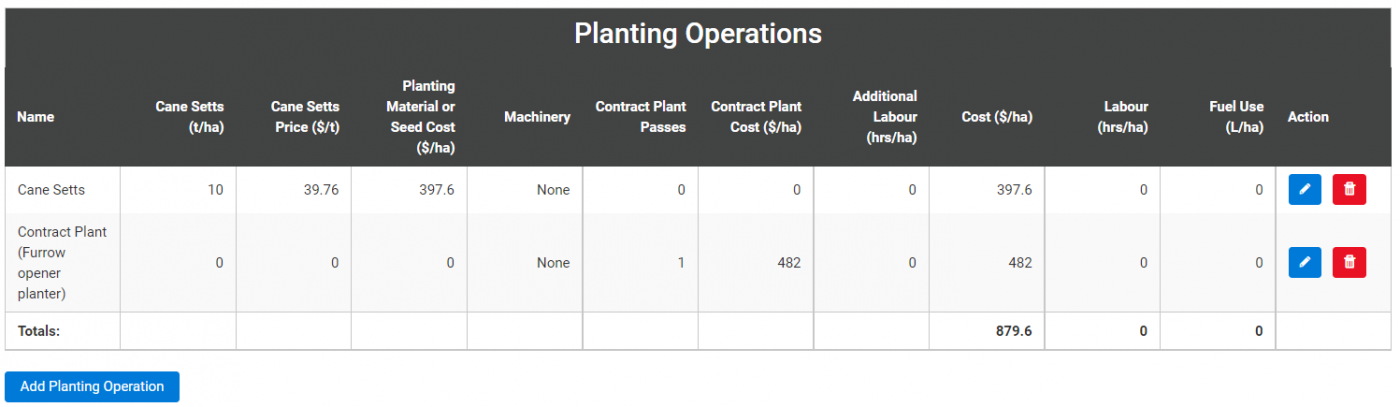
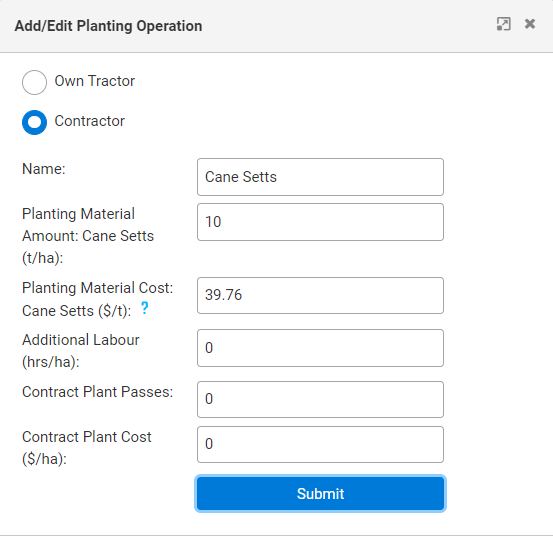
Add planting operations by entering the:
1. Name of the planting operation.
- Provide details here on whether planting yourself or by using a contractor.
2. Tonnes of cane setts planted per hectare for ‘Planting Material Amount (units/ha)’.
3. Cost of cane setts per tonne in place of ‘Planting Material Cost ($/unit)’.
- This is automatically calculated as the opportunity cost of cane setts based on average CCS, but this cost can be altered.
4. You have the option of either (or both), (1) entering a machinery operation (e.g. planter) and labour use requirement if they do their own planting, or (2) entering how much they pay for a contract planter per hectare.
5. If you choose to omit information in any entry area, please just put 0 (if a number is required), or a full stop or hyphen if text is required.
- Note: Sugar Research Australia (SRA) have a QCaneSelect tool which provides variety information and productivity reports.
Fertiliser and Ameliorants
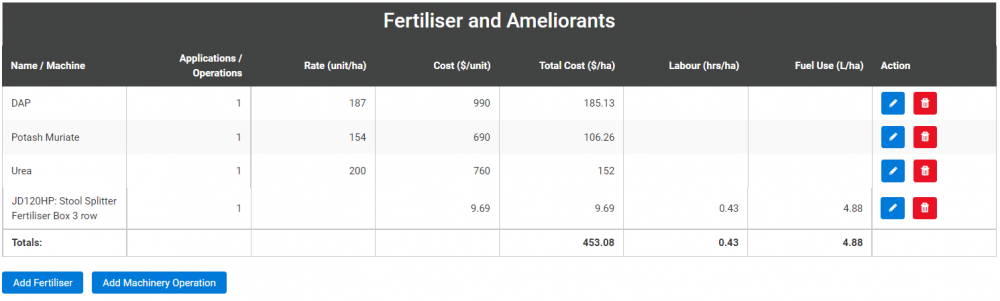
1. Add fertiliser/ameliorant costs by clicking the ‘Add Fertiliser’ button and selecting the option for either "Add new Chemical" OR "Import Chemical".
2. Then add the machinery operation, see Machinery Setup for more information.
Add new Chemical
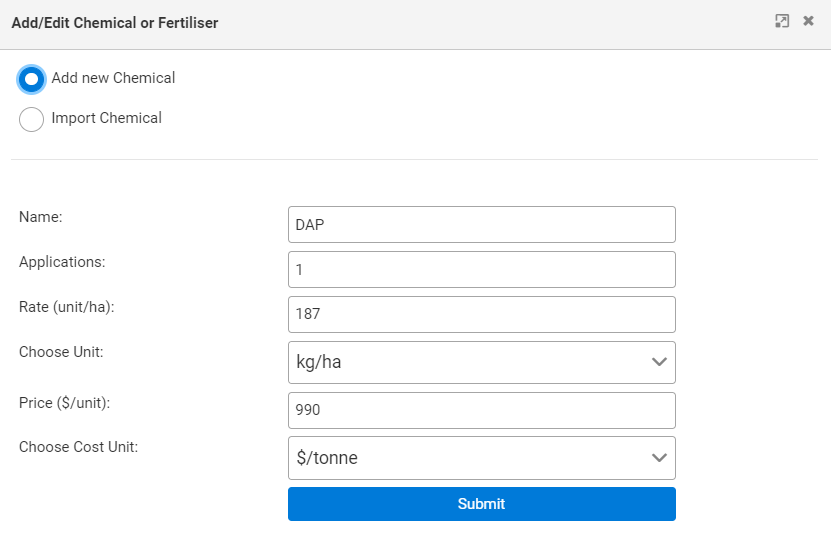
1. Enter the type of fertiliser or Ameliorant (e.g. Urea or Lime).
2. Enter the number of applications (e.g. 1).
3. Enter the fertiliser application rate (e.g. 250 units/ha).
4. Enter the fertiliser application rate units (e.g. kg/ha).
5. Enter the fertiliser price (e.g. $750/unit).
6. Enter the fertiliser price units (e.g. $/tonne).
7. Add fertiliser application costs by clicking the ‘Add Machinery Operation’ and entering the details for the implement used to apply fertiliser (e.g. stool splitter).
- If fertiliser is applied by the planter then do not enter an implement.
Import Chemical
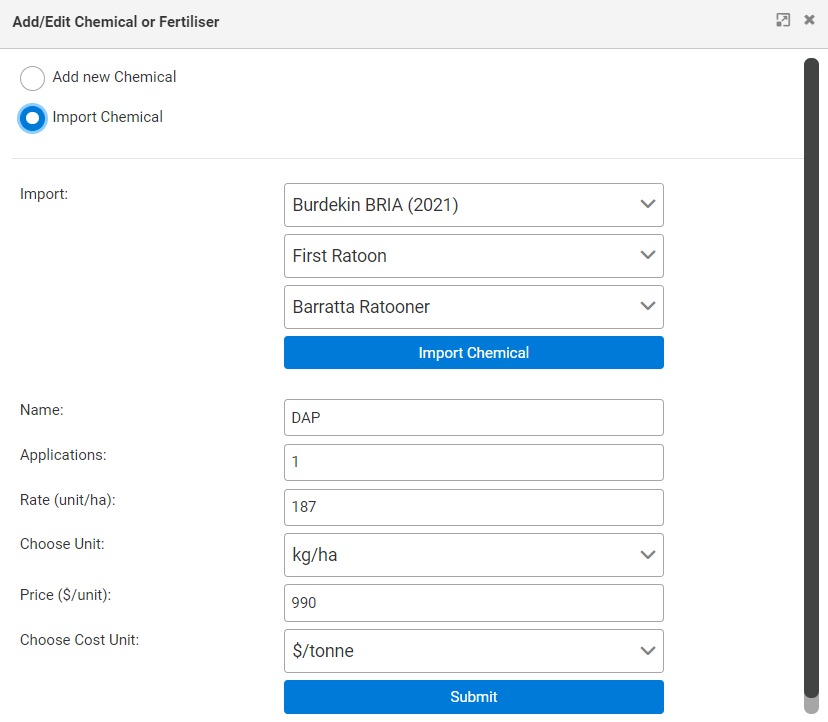
1. Select the Scenario to import the chemical from.
2. Select the Crop Entry from that scenario.
3. Select the Chemical Entry from that crop entry.
4. Click "Import Chemical", change any parameters you wish, and click "Submit".
5. Add fertiliser application costs by clicking "Add Machinery Operation" and entering the details for the implement used to apply fertiliser (e.g. stool splitter).
- If fertiliser is applied by the planter then do not enter an implement.
Additional Tools:
- Fertfinder can help you select the right fertiliser blend that matches the nutritional requirements of the paddock.
- CogCalibrator makes calibrating a cog driven fertiliser applicator easier by providing a recommendation on the cogs to use to achieve your target application rate.
- NutriCalc can help you develop nutrient management plans for use on-farm.
- You can access these three SRA tools here.
Weed/Insect/Disease Control
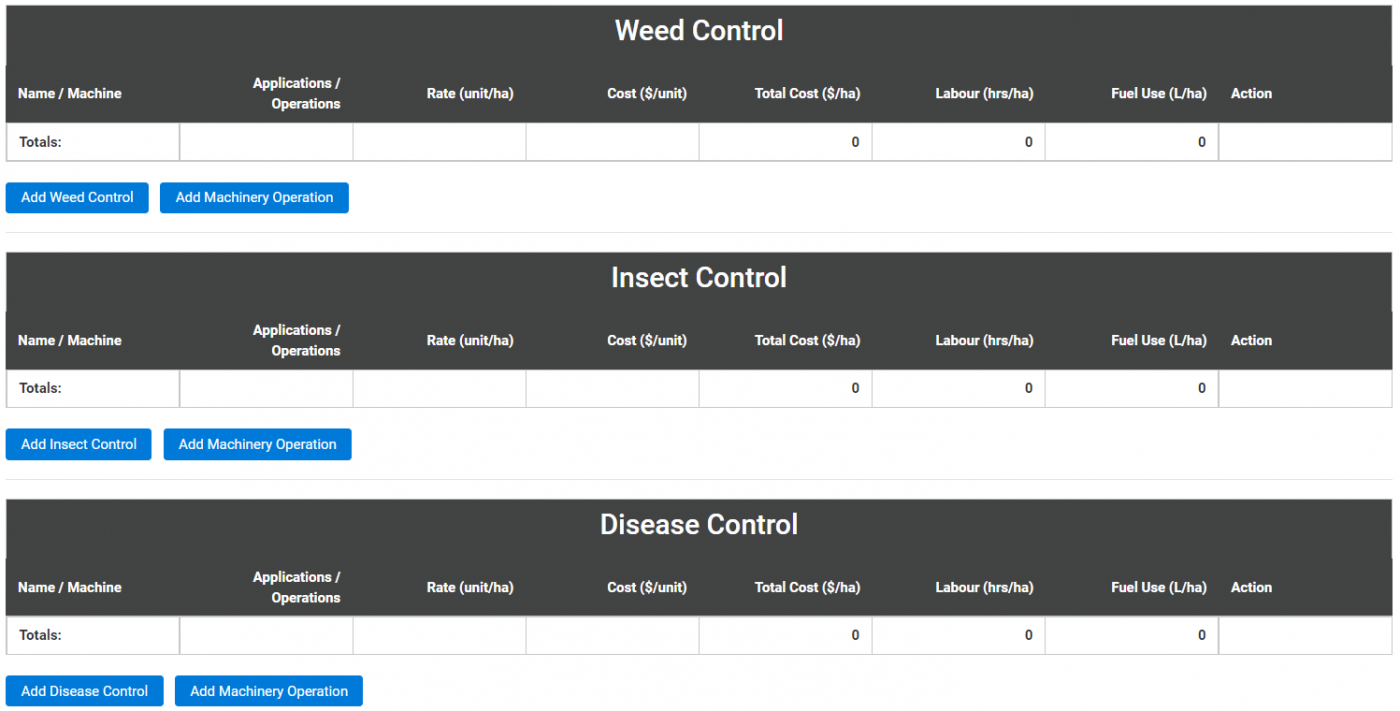
Add chemical costs by clicking the "Add Weed Control", "Add Insect Control" or "Add Disease Control" buttons and entering information the same way as you would for the above section, Fertiliser and Ameliorants.
- SRA have a Weed ID Tool that can help growers identify weeds they may find on their cane farm.
- Burdekin Productivity Services (BPS) have a Spray Calibration Calculator which can help with sprayer nozzle calculations.
- BPS also have a range of other grower tools.
Irrigation
Add irrigation costs by clicking the "Add/Edit Irrigation" button and entering:
1. How many irrigations occur on average over the crop growth period. For example, over 10-18 months.
2. How much water is applied per irrigation event in millilitres. For example, 100mm = 1ML/ha.
3. Irrigation casual labour cost in dollars per hour ($/hr).
4. The water application rate will be calculated and shown in Megalitres per hectare (ML/ha).

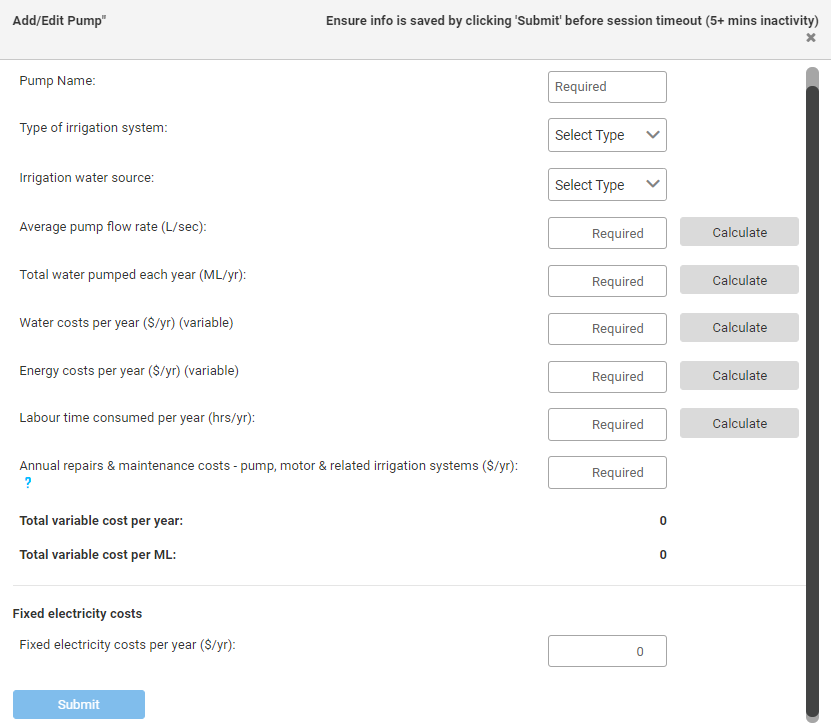
Add a pump to the scenario with the steps below:
1. Click “add pump”.
- For more detailed information on how to fill out the pump information please visit the Irrigation Setup page.
2. Press “Submit” to add the pump information to the scenario.
- The pumps will stay the same across crop classes.
Selecting the next Crop Class
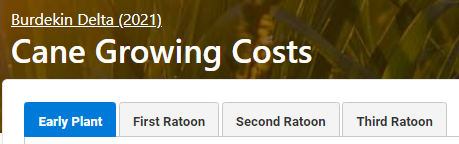
Once you have entered information for one growing cost page, click the next tab to navigate to the next crop entry.
Copy Operations From Function
If you have an empty crop entry you can use the "Copy Operations From" function by following the steps below:
1. Click the crop class tab to copy the data into.
2. Click the drop down box for "Copy Operations From" and select which crop class you want the data to be taken from.
3. Click the copy button and all data will be copied into the current crop class tab.
- Note: If the crop class you are in has some data, then all the data from the crop class you are copying from will be added to that data. Therefore, it is recommended to only use this function when you have an empty crop class to copy operations to. For example, copying operations from 1st Ratoon to an empty 2nd Ratoon tab.

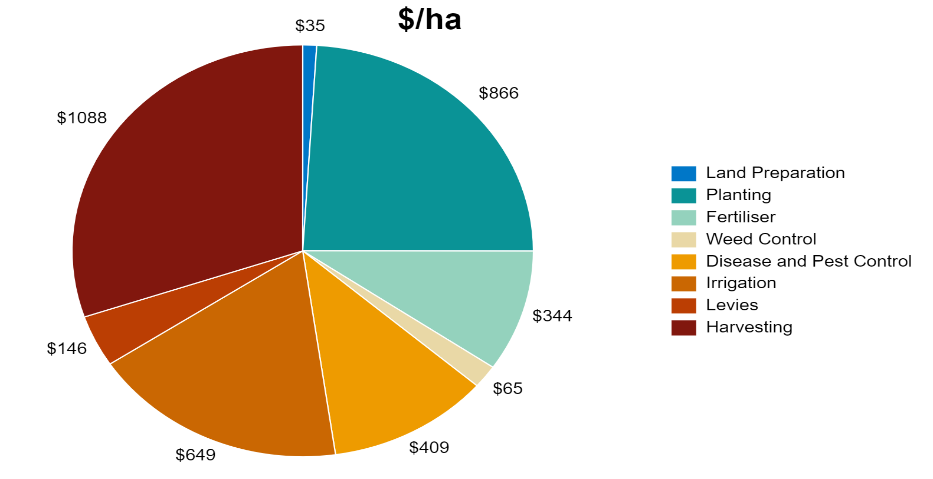
Graph Variable Costs
If "Graph Variable Costs" (to the right of copy operations from) is selected:
1. A new browser page will popup.
2. It will display two pie graphs, for the current crop class variable costs in both dollars per tonne ($/tonne) and dollars per hectare ($/ha).
3. Select "Print this page" to bring up printing options or to save as a PDF file.
4. Open a different crop class and follow the same steps to graph them too.