Common Menu Items
The main navigation bar (top and bottom grey bar) will always contain the same menu items, which you can click at any point to navigate to any of the top level pages.


The contextual navigation bar will display links relevant to the current page. When a scenario is entered, this bar will contain links to any page relevant to editing a scenario. This enables you to fill out a scenario in any order, or to go back/forward and review any aspects of a scenario.

View inside a scenario.
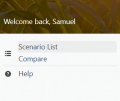
View outside a scenario.


Wizard Buttons
At the bottom of most pages will be a "logical" back and next button, which will guide you to the recommended next page.
Tip: The FEAT Online Wiki also has back and next Wizard buttons at the very bottom of each wiki page.

Tips for using FEAT Online
The five Action buttons are Edit, Copy, Share, Archive and Delete:
- Edit (pen icon): In most sections this opens up the input box, where you can make edits and save them by clicking submit.
- Copy (sheets of paper icon): On the scenario list page this copies the selected scenario so you can change the name of the scenario and modify the information. On growing cost pages this button adds in information from the selected crop in the drop down option.
- Share (molecule or three dots icon): On the scenario list page this shares the scenario with another user of FEAT Online. When edits are made by the other user to the shared scenario, the changes do not affect your original scenario file.
- Archive (folder icon): Moves the selected scenario to the Archived Scenarios list. It can be added to the main list or a certain Archived Folder that you can create.
- Delete (garbage can icon): On the scenario list page this deletes the entire scenario and you will need to take care not to accidently delete scenarios when using this function. On other pages this action generally deletes a row of entered information.

Tip: If you choose to omit information in any entry area, please just put 0 (if a number is required), or a full stop or hyphen if text is required.